
Printing, signing, scanning, emailing, then waiting for the other party to do the same. For an average contract that takes days, and most of it is waiting. E-signing takes that time out.
But speed isn't the only benefit. A well-set-up signing process also records who signed when, prevents the wrong version being signed, and makes sure the signed contract lands in the right place automatically.
Short answer: prepare the final version, add the signers, choose whether they sign at the same time or in order, and send the request. Each signer signs in the browser via a unique link, without an account. Track progress, let reminders go out automatically, and keep the signed document with its audit trail alongside the contract.
Step 1: prepare the final version
The most common mistake in e-signing has nothing to do with technology: the wrong version gets signed.
- Finish negotiating before you send. A signed document can't be quietly changed.
- Check the annexes. Does the contract refer to general terms, an SLA or a price schedule? Add them to the same document, or refer to them unambiguously.
- Check the approval. Has the contract been approved internally by whoever needs to? See setting up approval workflows.
Step 2: add the signers
For each signer you record the name, email address and organisation. Two things to check:
- Is the signer authorised? On the counterparty's side, someone must sign who is allowed to represent the organisation. If in doubt, check the company register.
- Are you signing too? Don't forget your own signer, and stay within your own signing authority.
Step 3: choose simultaneous or sequential
| Simultaneous (parallel) | In order (sequential) | |
|---|---|---|
| How | Everyone gets the invitation straight away | The next signer only gets the invitation once the previous one has signed |
| Faster | Yes | No |
| When to use | Standard contracts, NDAs, order confirmations | When the counterparty must sign first, or you sign internally only after the customer |
A common order: the counterparty first, then your own authorised signatory. That way you only sign once you know the other side has agreed.
Step 4: send and follow up
Each signer receives an email with a unique, secure link. After that you want to see:
- who has opened the invitation, who has signed and who hasn't yet;
- whether anyone has declined;
- when the request expires.
Set an expiry date that matches the urgency. Too short, and you have to resend; too long, and the request stays open forever.
Step 5: archive the signed contract, with audit trail
A signature is only worth something if you can later show that it was given, by whom and when. That is what the audit trail is for: a record of every step, from sending to signing, with time and technical details.
Keep the signed document with its audit trail with the contract itself, not in a separate e-signature tool. Otherwise you'll soon have two places to search.
Step 6: put the contract under management
After the last signature, the actual contract management begins: end date, notice period, owner and alerts. Doing that straight away prevents the signed contract from disappearing into a folder. See contract management: the complete guide.
Is it legally valid?
Yes. Under the EU eIDAS regulation, an electronic signature cannot be denied legal effect or admissibility as evidence solely because it is electronic. eIDAS distinguishes three levels: simple, advanced and qualified electronic signatures. The difference lies mainly in evidential value. For most business contracts an electronic signature is sufficient, and an audit trail strengthens its evidential value; a limited number of legal acts have stricter form requirements.
E-signing in Looop
In Looop, signing is built in, in every plan and without credits or a separate subscription:
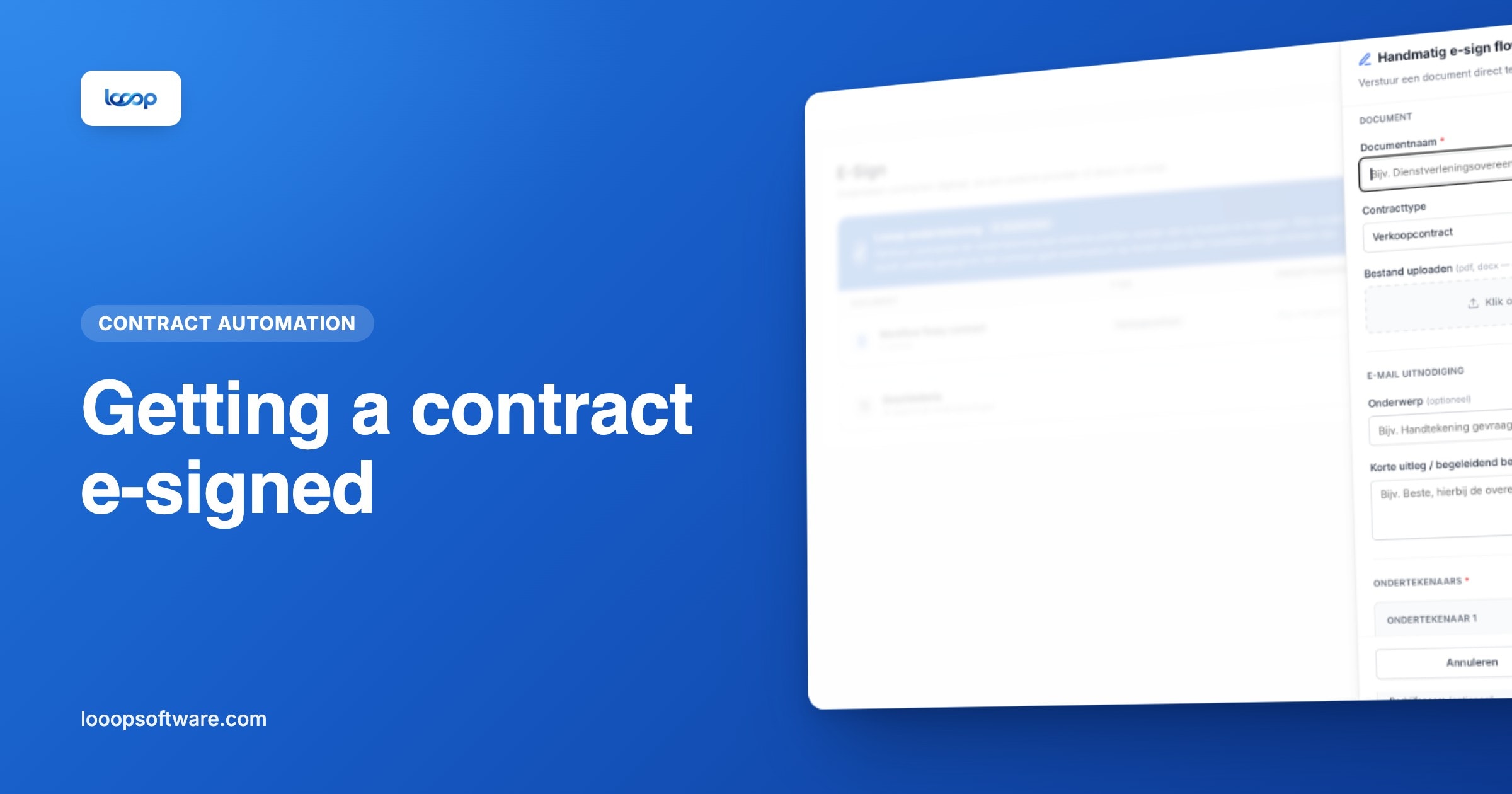
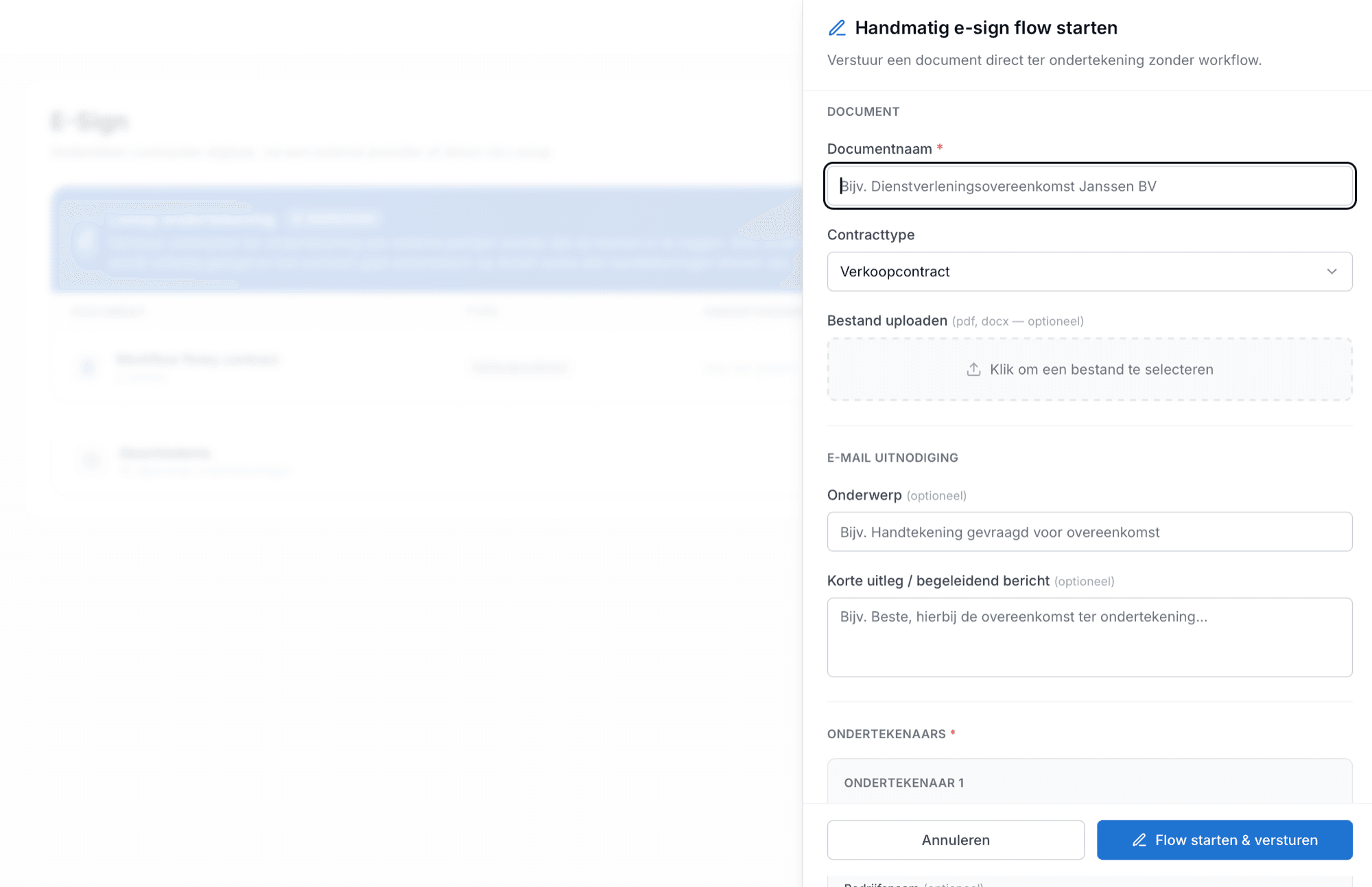
- Start from the workflow or directly via E-Sign. A contract that reaches "For signature" in the workflow is ready to go. Or upload a PDF or Word document.
- Signers with name, email and organisation, signing simultaneously or in order.
- No account needed. Each signer gets a personalised email with a unique link and signs in the browser: by drawing, typing or uploading a signature. Declining is possible too.
- Automatic reminders after 3, 7 and 14 days, and an expiry date between 7 and 90 days.
- A full audit trail: every view, signature and decline is recorded with time, IP address and browser details.
- Automatically active. Once everyone has signed, Looop sets the contract to Active, and the expiry alerts run from that moment.
Does the contract come from your CRM? See how a won deal in HubSpot or Pipedrive automatically becomes a draft: connecting contract management to HubSpot, Pipedrive and AFAS.
Frequently asked questions
- How do I get a contract signed electronically?
- Prepare the final version of the document, add the signers with name and email address, choose whether they sign at the same time or in order, and send the request. Each signer gets a unique link, signs in the browser, and the signed document comes back with an audit trail.
- Does the signer need to create an account?
- Not with good e-signature software. In Looop each signer receives a personalised email with a secure, unique link and can sign straight away in the browser: by drawing, typing or uploading a signature.
- Is an electronically signed contract legally valid?
- Yes. Under the EU eIDAS regulation, an electronic signature cannot be denied legal effect or admissibility as evidence solely because it is electronic. For most business contracts an electronic signature is sufficient; an audit trail strengthens its evidential value. A limited number of legal acts have stricter requirements.
- What if someone doesn't sign?
- Send a reminder, or let the system do it automatically. In Looop, reminders go out automatically after 3, 7 and 14 days, and a request expires after the period you set (7 to 90 days). A signer can also decline; you see that straight away in the overview.